


Run the whole flow in a Development tenant as each person in it, using Workday’s Start Proxy, and save every step and check so the same run can be repeated after each change. Here is how kiweely did that for one multi-step Extend app: 33 checks over six test runs, as the employee, the manager and HR.
Why clicking through stops working
A multi-step Extend flow involves several people. An employee submits something, a manager approves it or sends it back, and someone else reads the result. Each of them sees different pages, has different security and gets different tasks in My Tasks.
Testing that by hand means signing in as each person and clicking every step again after every change, even a new field. Mock data helps with a single endpoint, but it doesn’t route a real business process to a real manager. And testing as an admin hides exactly the problems the people in the flow will hit, because an admin can see almost everything.
The flow we tested
The app is a remote work request in a Workday Development tenant, with fictional sample people:
- An employee asks to work fully remote or hybrid, with a start date, home address and reason. Hybrid also needs office weekdays.
- A missing address or a start date in the past is stopped with a clear message.
- The manager approves the request or sends it back with a comment, and the employee can correct and resubmit.
- HR sees every approved arrangement and can filter by country or state.
1. Turn each requirement into checks
Before testing, kiweely wrote the requirements down as checks, each tied to the person who does it: the employee’s missing address and past date, hybrid weekdays, the manager’s send-back with a required comment, the employee’s resubmission, the manager’s approval, and HR’s list and filters. Each check says what should happen, so a run can only be read one way.
2. Run each check as the person who does it
Each check ran as its person, not as an admin. For manager steps, kiweely used Workday’s Start Proxy, so the tenant showed “On behalf of” with the manager’s name, and the request arrived in that manager’s My Tasks the way it would for real.
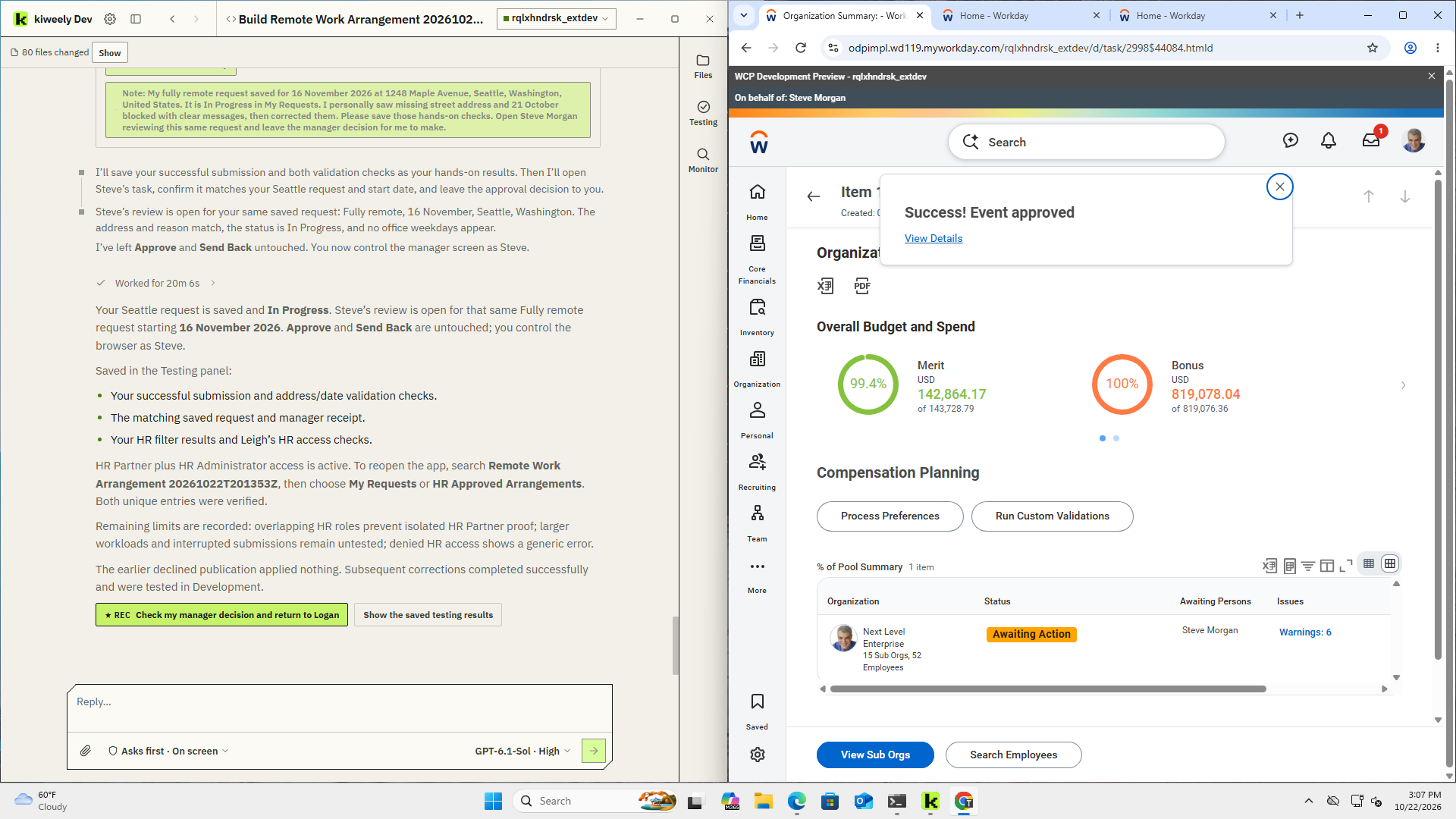
The employee checks ran the same way. A missing street address produced a required-field message. A start date in the past produced “The start date must be today or later.” Correcting both let the request through.
3. A real failure, caught and retested
Partway through, the request page showed a Page Error for the employee, Beth Liu. The app’s error record pointed to its country list failing to load. kiweely found an invalid country-list setting, corrected it in both the new-request and returned-request screens, and ran the check as Beth again. The form loaded and the country list worked. The original failure and the passing retest were both saved in the testing record.
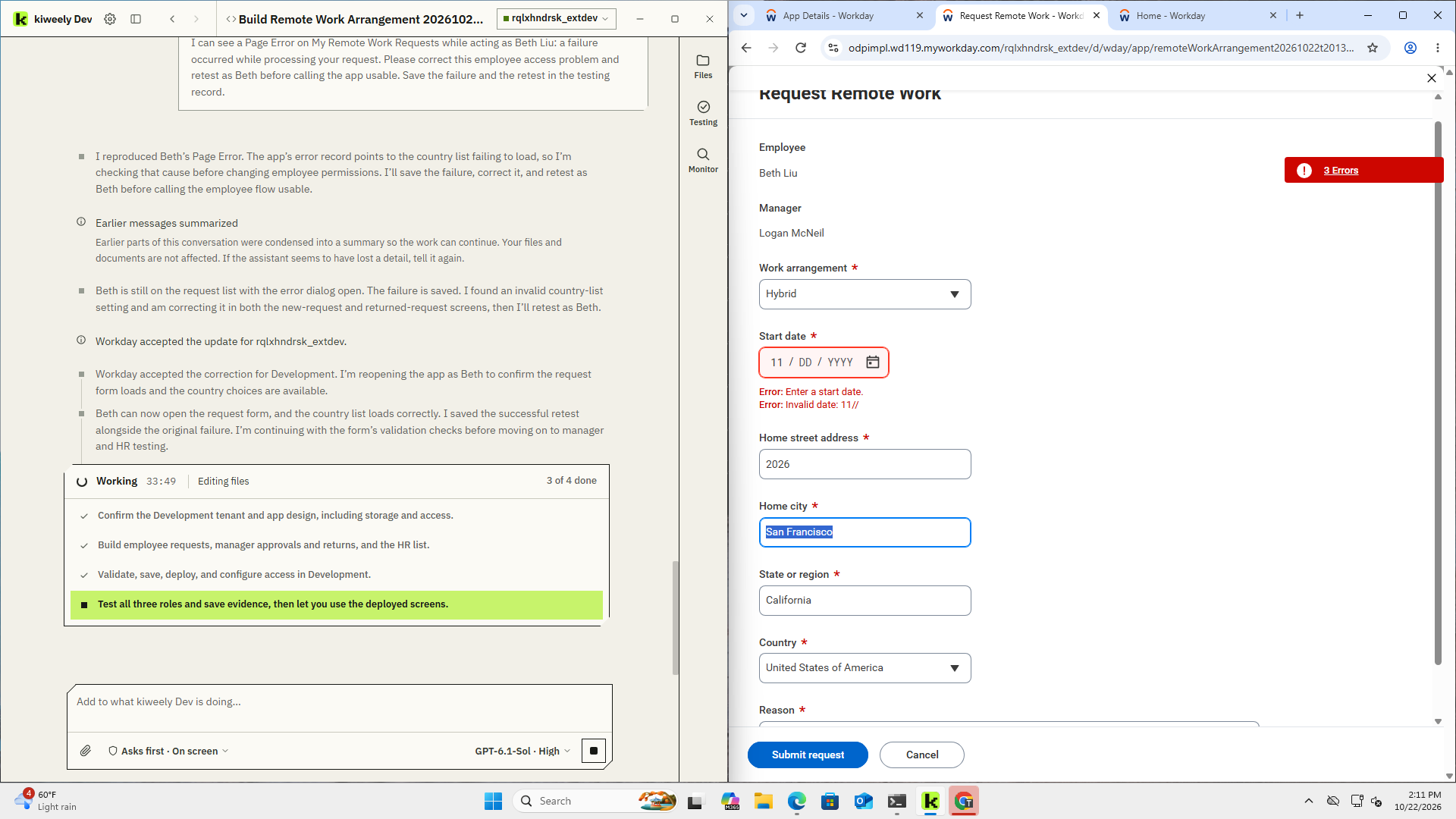
Because the failure and the retest are both saved, the next rerun checks that form again.
4. Save the steps, not just the result
Checks are saved with the project as the steps that ran them. Each step names the control by its role and its label, the way a person would find it, plus the check that has to hold afterwards. This is part of the saved send-back check, as written in this run:
{
  "requires": "Confirm Steve proxy. A new acceptance hybrid request awaits his approval; existing retained examples must not be used.",
  "steps": [
    { "find": "role", "value": "button", "name": "My Tasks", "action": "click" },
    { "find": "role", "value": "button", "name": "Remote Work Approval: Logan McNeil - Hybrid", "action": "click" },
    { "find": "role", "value": "button", "name": "Send Back", "action": "click" }
  ],
  "checks": [
    { "find": "label", "value": "Reason", "expect": "required; blank submission leaves dialog open" },
    { "find": "text", "value": "Event sent back", "expect": "present; Logan up next" }
  ]
}
After a change, a rerun replays those saved steps instead of anyone clicking through again. Before a rerun, kiweely shows one card listing what the run will create in the tenant and what it will put back, and you approve that list once.
5. Read the result as a record, limits included
The Testing panel shows where things stand. After the first four test runs it read Checked 20 of 20, every one passing, as in the picture below. A second consultant’s acceptance then added 13 checks over two more runs. The saved record ends at 33 checks: 32 passed, and one, HR Partner access on its own, couldn’t be run. Each check opens to what was done, as whom and what was seen.
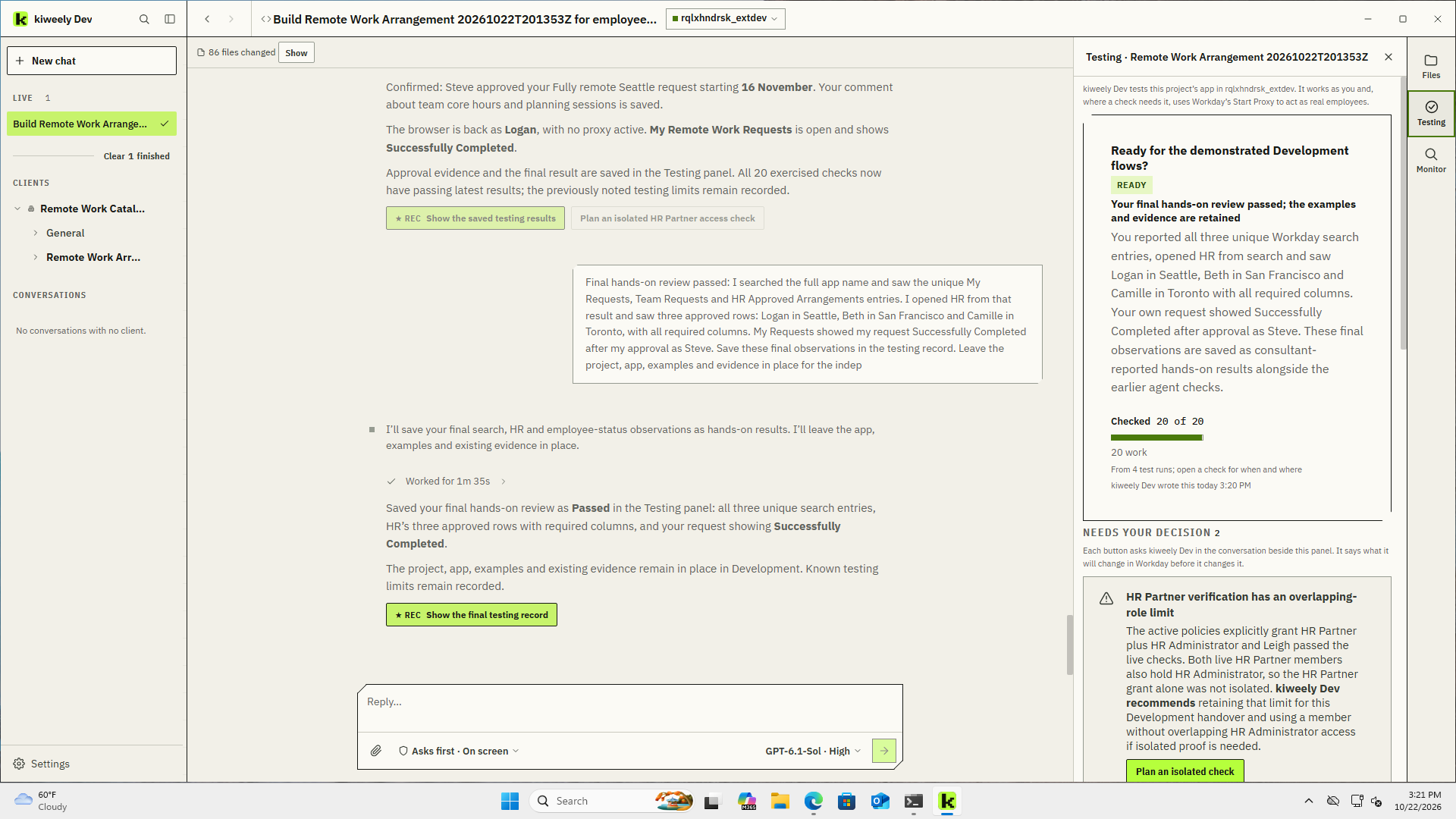
It also kept what couldn’t be proven. The tenant’s security policies grant the HR list to both HR Partner and HR Administrator, and both HR Partners in that tenant also hold HR Administrator. So a test as either of them couldn’t prove that HR Partner access works on its own. The panel recorded that as a limit, with a recommendation, instead of counting it as a pass.
What this run didn’t test
- HR Partner access on its own, for the reason above.
- Larger numbers of requests, and a submission interrupted partway through.
- Cleaning up the test requests afterwards. The requests and examples were left in the Development tenant on purpose.
A checklist for your own Extend flows
- Write each requirement as a check, tied to the person who does it.
- Run every check as that person, with Start Proxy in a non-Production tenant, never as an admin.
- Include the checks that should fail: missing data, past dates, a send-back.
- Save the steps by control name and label, so they survive a layout change.
- After any change, rerun the checks and read each result.
- Record what you couldn’t prove, and why.
Watch Kiweely Vine build and test an Extend app
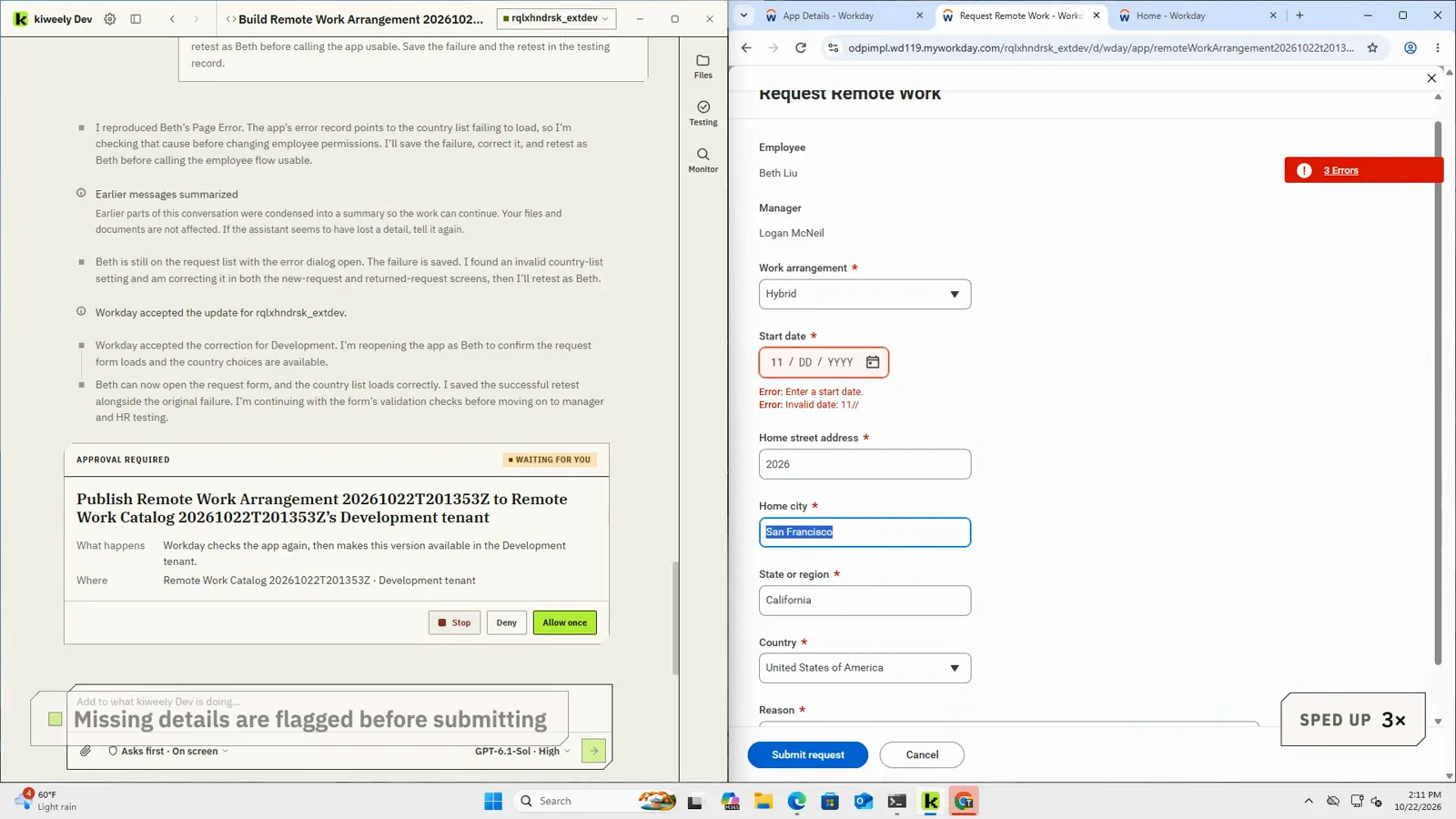
A consultant describes a remote work request app in plain business words. Kiweely Vine builds it, publishes it to a Workday Development tenant and tests it as the employee, the manager and HR: employees ask to work remote or hybrid, managers approve or send back with a comment, and HR sees one list of who works where. About two hours of real work, shown in 13 minutes. Every acceptance check passed in Development.