


The short answer: a Workday MCP server is safe when four gates are set on their own and each one is owned by a named team. The assistant decides who can use the connector at all. The server’s tools decide what can be attempted, and every change waits for the person’s yes outside the chat. The Workday API client decides how people sign in and which functional areas can be reached. Workday’s own tenant security makes the final check on every call. Each person signs in as themselves, so the result is never more than they already have in Workday.
This applies whether the server is Workday’s own Agent-Ready Tools, a vendor’s or one you build. For the options themselves, see Claude, ChatGPT and Gemini with Workday: every option compared.
What is a Workday MCP server?
MCP, the Model Context Protocol, is how Claude, ChatGPT, Gemini and Copilot Studio call outside tools. A Workday MCP server is a small web service that offers the assistant a list of tools (“get my time off balance”, “run this report”, “request time off”) and turns each call into a Workday REST, SOAP, WQL or report request. The assistant decides which tool to call; the server decides which tools exist and how each call reaches Workday.
That middle position is why it needs care. The assistant is good at choosing tools and wording answers, and it is not a security control. Instructions and skills you give it improve accuracy, but they are guidance. Everything that must hold is set in the four gates.
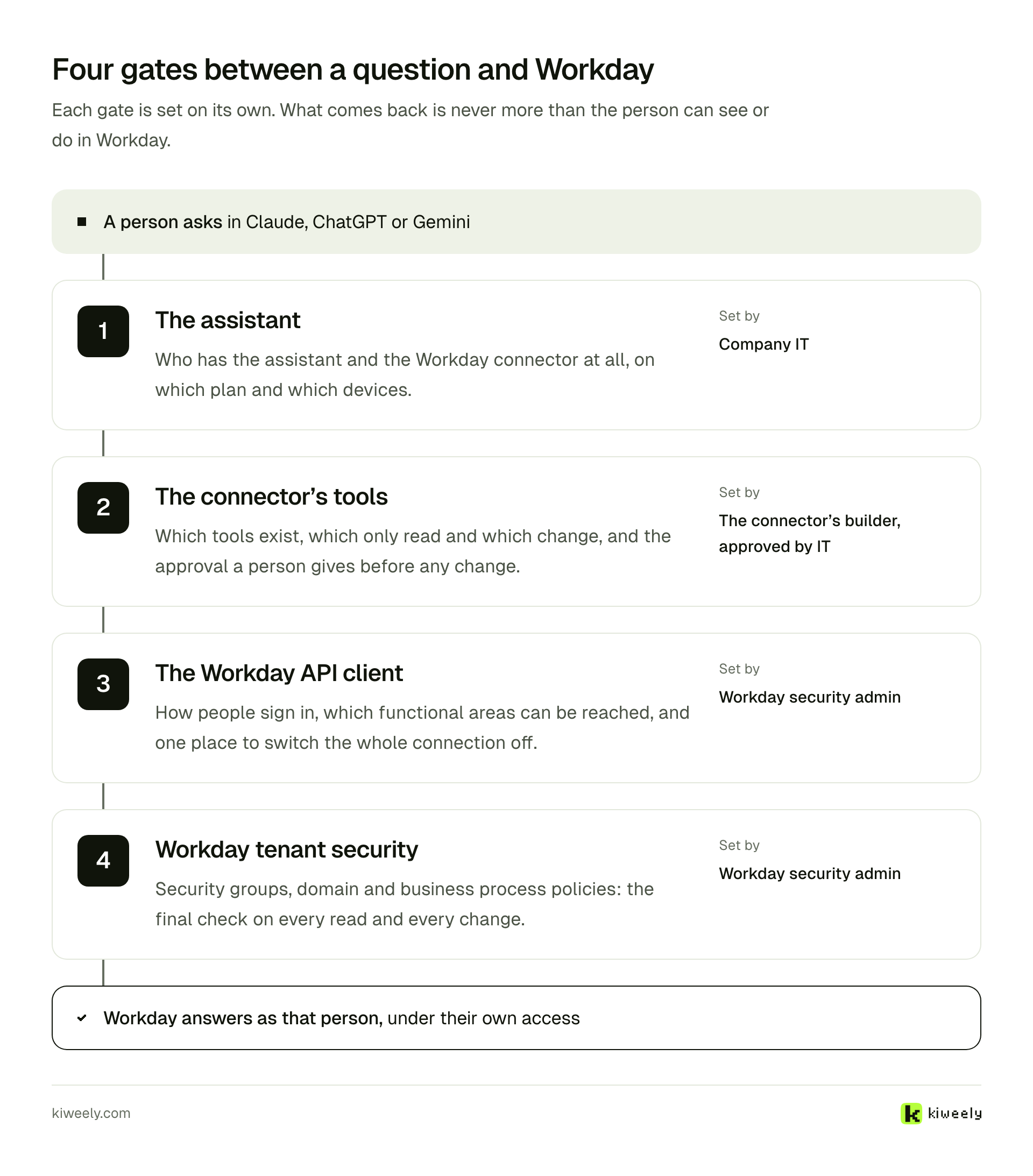
Gate 1: who has the assistant and the connector?
This is set in the assistant, by company IT. In Claude, only Owners and Primary Owners add connectors on a Team plan, and on Enterprise also people with a custom role that includes Manage access to Libraries (Anthropic). Each member then connects for themselves. In ChatGPT, workspace permissions decide who can add and use custom MCP servers, and the server is added on ChatGPT on the web (OpenAI).
Decide here which people get the Workday connector, on which plan and which devices, and who may add other connectors next to it. A pilot group is set at this gate, not by asking the assistant to behave.
Gate 2: which tools exist, and which ones change anything?
This is set in the server, by whoever builds or buys it, and approved by IT and information security. It is the gate that defines what the assistant can even attempt.
- One list of tools, each marked read or change. A tool that is not on the list cannot be called, whatever someone types. OpenAI treats any tool without the
readOnlyHintannotation as a write and asks for confirmation by default, so mark reads honestly. - A yes before every change, outside the chat. A confirmation inside the conversation can be answered by the conversation. A change should wait on a card in the browser that shows what the record is now and what it will be after, and nothing typed in the chat can press it.
- One allowed Workday address. The server should call only your tenant’s own hosts, so a prompt cannot point it anywhere else.
- Fields left out on purpose. If no one should ask the assistant about pay or national IDs, leave those fields out of the tools.
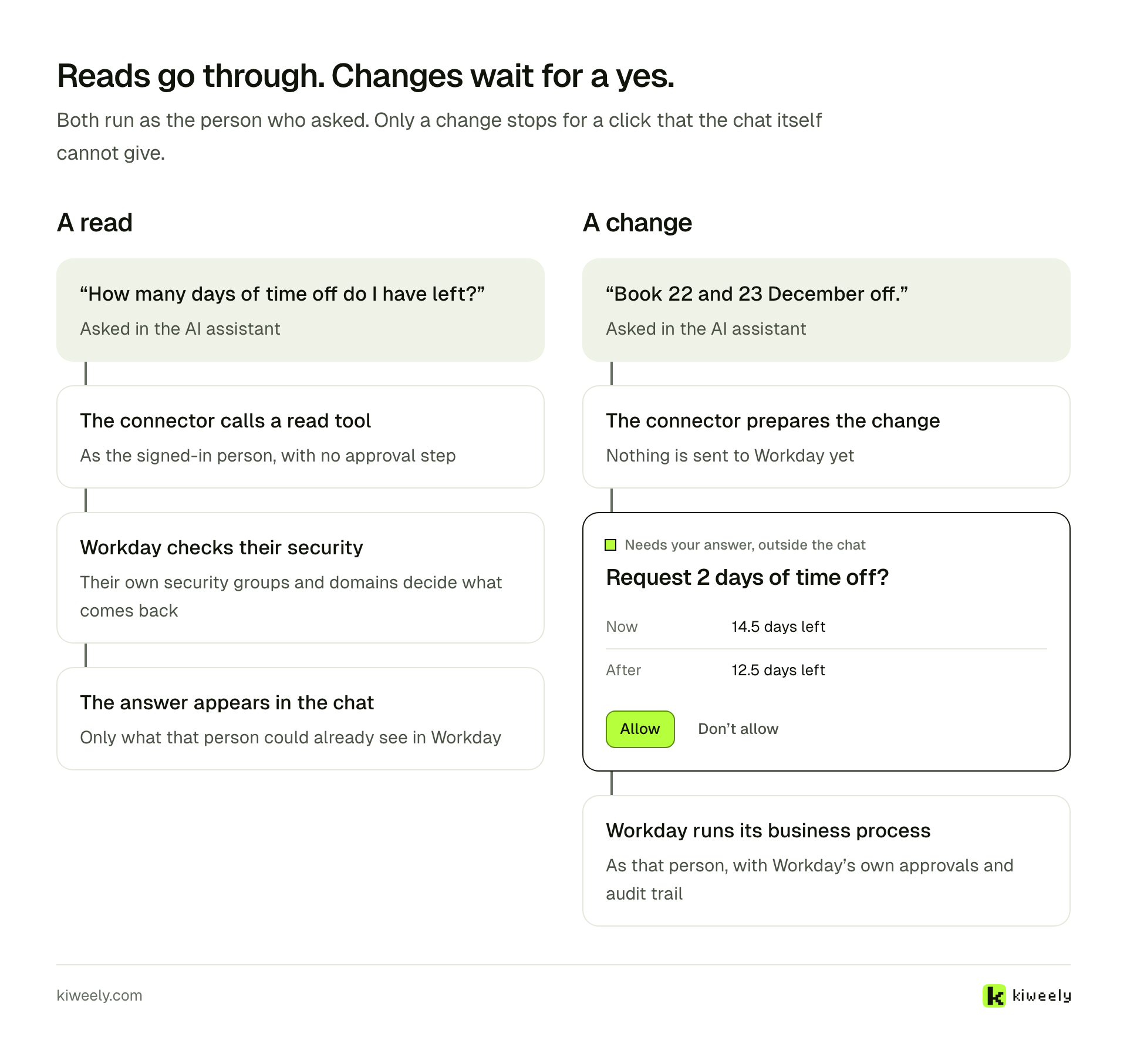
Start read-only. Turn changes on one at a time, after each has been tested as the people who will use it.
Gate 3: how does the Workday API client sign people in?
This is set in Workday, by the Workday security admin, with the Register API Client task. It is where most connectors go wrong.
There are two kinds of client. An API client with the Authorization Code Grant makes each person sign in on Workday, so every call carries their own identity. Workday’s own set-up pages use it for its agents, with a redirection URI, a refresh token timeout and a chosen set of functional areas (Workday); Workday’s MCP uses the same grant, with access tokens that expire after 4 hours and refresh tokens after 30 days (Workday). An API client for integrations with an integration system user is one shared account, and every person in the chat gets its access. Glean’s Workday connector, for example, uses one integration system user (Glean), which suits a people directory and does not suit “show me my payslip”.
Set three things on the client:
- Scope (Functional Areas). Only the areas the tools need. Microsoft’s simplified Copilot set-up, for instance, asks for Core Payroll, Organizations and Roles, Staffing, and Time Off and Leave as its minimum (Microsoft).
- Refresh token timeout. Short enough that a person who leaves the pilot loses access soon after.
- One place to stop it. Every token the server holds comes from this client, so it is the one place the whole connection can be cut without touching anyone’s Workday account.
If you build the server yourself, the MCP specification adds a hard rule: the server must validate that each token was issued for it, and it “MUST NOT pass through the token it received from the MCP client” to Workday (MCP authorization). So the server runs its own sign-in towards the assistant and holds a separate Workday token for each person.
Gate 4: what does Workday itself allow?
This is Workday’s tenant security, owned by the Workday security admin, and it is the final check on every read and every change. Security groups and domain security policies decide what each person can see; business process policies decide what they can start and who approves it. An API client’s functional areas do not replace them: Microsoft’s set-up page says the API client scopes “don’t replace domain security permissions”.
Because the call runs as the person, nothing new needs to be designed here. Check that the domains the tools touch are granted to the right groups, and that business processes started from the assistant route to the same approvers as when they are started in Workday.
Where should the server run, and what should it record?
- Reachable, but only by the assistant. Claude connects from Anthropic’s cloud, not the person’s laptop, so the server must be reachable from Anthropic’s IP ranges on port 443; a server behind a VPN will not connect. ChatGPT needs a public HTTPS endpoint or its Secure MCP Tunnel. A server you host yourself can allow only those ranges.
- The client secret in a vault. The Workday client secret and each person’s tokens live in your secret store, never in the server’s code or logs.
- An audit log of calls, not of answers. Record the time, the person, the tool and the result status, so security can see who asked for what. Keep pay figures and personal data out of the server’s logs; Workday keeps its own record of every business process.
- A switch-off anyone on call can use. One switch that stops all tool calls at once, plus the API client in gate 3 as the backstop.
Which teams does a project need?
A Workday MCP server touches every part of the company’s stack, so it needs more people than the engineer who writes it:
| Team | What they do |
|---|---|
| TeamIT and infrastructure | What they doHost the server, the vault and the network rules; roll the connector out in the assistant |
| TeamInformation security | What they doReview the design, sign-in and audit feed; test it |
| TeamWorkday security and configuration | What they doRegister the API client, set its functional areas, review security groups and business processes |
| TeamHR and other process owners | What they doPick the first questions and tasks, and agree which changes are allowed |
| TeamTesting | What they doTest as an employee, a manager and an HR partner, every change type, again after each Workday release |
| TeamChange management | What they doRun the pilot group, the short guides and the support desk playbook |
| TeamLegal, privacy and the assistant’s plan owner | What they doReview data handling and the company’s assistant settings |
Workday ships two major releases a year, so the testing row never ends: every tool is checked again as each role after each release.
What does this look like without building it?
Kiweely Bridge, coming next, is built around the same gates. Each employee signs in as themselves on Workday’s own sign-in screen, and every call runs under that worker’s own security groups and domains. It is read-only by default; admins turn changes on one by one, and every change waits for a card in the browser that shows now and after. No Workday records, questions or answers are written to disk, a database or logs. An AI admin agent sets up the API client, chooses which tools and fields exist and tests as real roles. How it handles sign-in and storage is on Bridge security, and you can register interest.
Frequently asked questions
Should a Workday MCP server use an integration system user?
Not for an assistant that employees talk to. An integration system user is one shared identity, so every person in the chat gets its access. Use an API client with the authorization code grant so each person signs in on Workday and every call runs under their own security groups and domains.
Can the AI change Workday data on its own?
Only if you let it. Keep the server read-only at first, mark each tool as a read or a change, and make every change wait for the person's yes on a screen the chat cannot answer for them. Workday's own business process approvals still apply after that.
How do we switch it off quickly?
Every token the server uses comes from one Workday API client, and every person's access to the connector comes from one setting in the assistant. Those two places stop the whole connection without touching anyone's Workday account.