


A single Workday report or EIB fits neatly inside one chat thread. A real Workday implementation—or a Phase X expansion spanning Core HCM configuration, three conversion EIBs, a benefits feed, four executive reports, and a custom Extend app—quickly outgrows disconnected folders, status trackers, and manual slide decks.
Consultants lose hours every week switching context: chasing which workstream is blocked on a client decision, forgetting which temporary test roles were left behind in Sandbox, and reformatting Word documents and PowerPoint decks at midnight so every deliverable matches the client’s branding.
Kiweely Vine Deployments were designed specifically for that multi-workstream reality: one parent Deployment coordinating parallel child projects for a single client, with unified governance panels and reusable client-branded deliverables.
1. Structuring a Client Implementation as One Deployment
In Kiweely Vine, every project belongs permanently to one client—eliminating cross-client credential or file bleed. When you start a Deployment (New project > Deployment), it becomes the command center for all workstreams under that engagement:
- Parallel child projects: Configuration, Data load, Cloud connector, Studio integration, Testing, and Extend app projects all sit directly underneath the Deployment, grouped cleanly by kind in the sidebar.
- Delegated briefs without babysitting: You tell the Deployment’s conversation the scope and SOW milestones; the Deployment hands briefs to individual child project conversations that run in parallel—any number at once—and report back when finished or blocked.
- Inherited environment settings (never Production): Tenant connections (Development, Implementation, Sandbox), model/effort settings, and conversation allowances set on the Deployment carry cleanly to child workstreams. Production is never inherited automatically—and connecting Production immediately turns Full Access off everywhere.
2. Managing Exceptions Through the Overview Inbox and Decisions File
When five workstreams run concurrently, the biggest risk is silent stalls or inconsistent decisions across workstreams (for example, Configuration choosing a 90-day waiting period while Reporting uses 60 days).
Vine solves both mechanically:
- One Overview inbox (
3 need you): Any child workstream waiting on a question, approval card, or tenant sign-in marks itself Needs you (never “Working”) and floats to the top of Live. The Deployment’s Overview opens onto one unified inbox showing every pending question, approval, sign-in, and hand-back—along with which child piece asked. Clicking a card opens that exact piece’s conversation so you approve or sign in explicitly; the panel never silently grants consent on your behalf. - One shared Decisions file: Every scope decision you make is recorded in the Deployment’s
Filesas a durable decisions file. When another child workstream asks a question already settled by your recorded decision, the Deployment answers it automatically—quoting your exact decision so you can always inspect or overrule it—while leaving unsettled questions for you.
3. Turning Work into Client Sign-Off: Acceptance & Tenant Changes Panels
Delivery leads spend the final week of every Workday milestone scrambling to prove two things to the client sponsor: “Did we actually meet every SOW criterion?” and “Did we clean up all the test data and temporary roles we created in Sandbox?”
Vine builds both records automatically across your child projects:
| Deployment Control Panel | What It Aggregates Across Child Projects | How Consultants Use It at Milestone Gate |
|---|---|---|
| Deployment Control PanelOverview Inbox | What It Aggregates Across Child ProjectsEvery pending question, approval card, sign-in prompt, and hand-back across all running pieces | How Consultants Use It at Milestone GateClear blockers in minutes without opening six separate chats |
| Deployment Control PanelAcceptance Panel | What It Aggregates Across Child ProjectsBreaks the Statement of Work into criteria per deliverable (Met, Not met, Not tested) linked directly to evidence in each piece’s record |
How Consultants Use It at Milestone GateReview every gap honestly and generate the client’s formal sign-off page directly into Deliverables/ |
| Deployment Control PanelTesting & Monitor Roll-ups | What It Aggregates Across Child ProjectsRolls up each child project’s persona testing status (flagging "Not yet used by everyone" if any role check hasn’t passed) and health records |
How Consultants Use It at Milestone GateMake an evidence-backed go/no-go decision before moving from Implementation to Sandbox |
| Deployment Control PanelTenant Changes Panel | What It Aggregates Across Child ProjectsLists everything child pieces created or changed in Workday—including security edits and Start Proxy sessions—with whether each item is still needed | How Consultants Use It at Milestone GateClick Propose cleanup before handover; the Deployment plans cleanup and still asks before removing anything |
Notice the core invariant: none of these panels compute a fake “green score” or silently query Workday behind your back. Every status comes directly from real project records and verifiable tenant evidence.
4. Generating Matching Client Deliverables from One Reusable Template
Technical delivery is only half of consulting handover—clients still expect crisp executive design PDFs, steering-committee PowerPoint decks, and structured Excel review workbooks wearing their own visual brand.
In our recorded run (Client template and design documents made in Kiweely Vine, 8:36 film), Vine demonstrated the end-to-end handover workflow on an illustrative client:
- Created one reusable client template directly from a public website’s visual identity (or a plain-English brand description).
- Applied that single template to an existing Workday Extend project inside the client’s workspace.
- Refined the object diagram and generated three synchronized handover artifacts straight from the real project record: a matching design PDF, a PowerPoint presentation deck, and an Excel design review workbook—all saved inside the project’s
Deliverables/folder with automatic invisible version history.
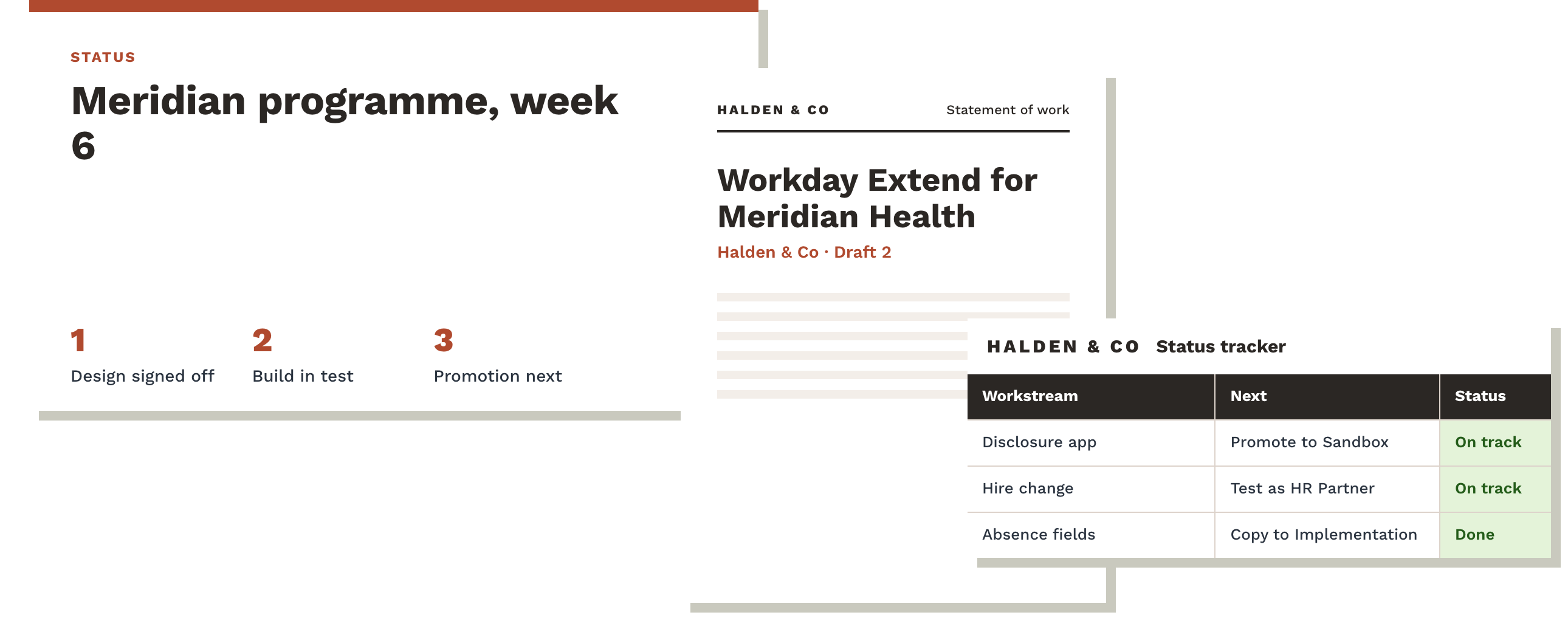
Because every project’s Deliverables/ folder stays synchronized with what was actually built and tested—and Vine reads Deliverables/ before acting on subsequent iterations—your handover documents stop drifting away from what actually sits in the tenant.
Step-by-Step Blueprint for Your Next Multi-Workstream Engagement
- Create the Client workspace and brand template first: Configure tenant connections (marking tenant types accurately and turning on Mask client data or EU-only AI routing if the SOW requires it) and build the reusable client template once.
- Start a Deployment project and upload the SOW: Let the Deployment split the SOW into criteria in the Acceptance panel and spin up child projects by kind (
Configuration,Data load,Studio integration,Extend app,Testing). - Work from the Overview inbox daily: Resolve questions once into the shared decisions file so every parallel workstream stays aligned, and review approval cards explicitly.
- Run Tenant Changes cleanup before moving tenants: Review every temporary test worker, EIB, or security tweak in the Tenant changes panel and approve cleanup before promoting from Implementation to Sandbox.
- Export the Acceptance sign-off pack and branded Deliverables: Hand the client one cohesive PDF, deck, workbook, and sign-off record backed by real persona test evidence.
For detailed setup steps, see How to Run Multi-Project Workday Implementations with Kiweely Vine Deployments and Deliverables Folder and Files Panel in Kiweely Vine. Vine Free is free for your Workday personal developer account and its tenant. Any other tenant needs Vine Personal at $99 a month for one person, or a Vine Team seat at $149 a month.
Frequently asked questions
What is a Deployment in Kiweely Vine?
A Deployment is a parent Workday project for one client that holds multiple child projects—such as Configuration, Data loads, Studio integrations, Cloud connectors, Testing, and Extend apps. Its conversation hands work to child projects in parallel while rolling up status, decisions, acceptance criteria, and tenant changes in one place.
Can a Deployment auto-approve tenant changes or consents inside child projects?
No. While a Deployment can answer a child project's functional question from decisions you already recorded (quoting the decision so you can overrule it), it never answers an approval card, consent prompt, or tenant sign-in on your behalf. Waiting approvals surface in the Overview inbox for your direct action.
How does the Tenant changes panel help before Sandbox or Production cutover?
The Tenant changes panel lists everything child projects created or changed in Workday—including security updates and Start Proxy sessions—identifying which piece did it and whether it is still needed. Clicking 'Propose cleanup' asks the Deployment to plan cleanup and still asks before removing anything.
How do reusable client brand templates work in Kiweely Vine?
As shown in our recorded Client Documents run, you can create one reusable client template (even from a client's public website or style description) and generate matching design PDFs, PowerPoint decks, and Excel review workbooks directly from your real project files.